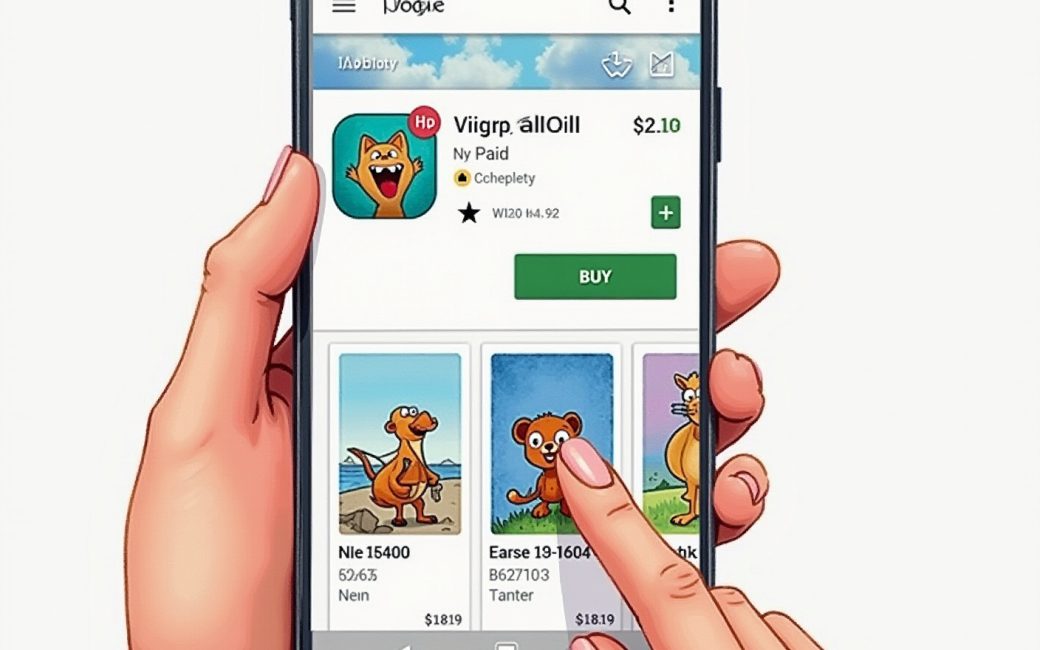
Buying a paid app and hitting a payment wall
Tapping a paid app listing shows its price, a Buy button, and nothing else until a payment method is on file. If the Google account attached to the device has never had a card, gift balance, or carrier billing added, the purchase stops right there rather than failing partway through. This is the single most common reason a straightforward app purchase appears to go nowhere.
Samsung's own support documentation walks through the fix: open the Play Store, go to its settings, and add a payment method to the Google account before trying the purchase again — the process is the same whether the method is a credit card or another payment option. A credit card is the method most people reach for, but it isn't the only one. Redeem codes and gift balances can cover a purchase without a card ever touching the account, and on phones bought through a carrier, the cost can sometimes be added straight to the phone bill instead. Any of these satisfies the same requirement — the account needs a payment method on file, not specifically a card.
Once a method is attached:
- Return to the app listing and tap Buy again.
- Confirm the price and the payment method shown in the dialog.
- Authorize the purchase (PIN, biometric, or account password, depending on device settings).
- The app downloads and installs automatically once payment clears.
If a purchase was made by mistake, removing the saved payment method or disputing the charge is handled from the same payment settings menu in the Play Store app, separate from the purchase flow itself — worth knowing before assuming a refund needs a support ticket.
When the Play Store icon has vanished
A missing icon almost never means the Play Store has been deleted — on a device that shipped with Google services, it's built into the system and can be disabled or hidden but not normally removed by the user. The fix depends on which of those happened.
Disabled or hidden, not uninstalled. Go to the device's Settings, then Apps (or Application Manager), find Google Play Store in the full list, and check whether it's been disabled. Re-enabling it from here restores the icon without touching any data. If the app drawer itself has hidden icons (a setting on some launchers), checking the drawer's own display settings will surface it again.
Genuinely absent. Some Android devices — certain budget models, some sold in specific regions, and devices running forked Android without Google's certification — don't ship with Google Play Services at all. On these, there is no Play Store to re-enable, because it was never installed in the first place. No setting restores something that was never there; the device would need Google Mobile Services added by the manufacturer or installed manually, which is a different undertaking from flipping a toggle.
After re-enabling or reinstalling. Sign back into a Google account from the Play Store app. Store listings, purchase history, and installed-app syncing are tied to that sign-in, so a freshly re-enabled store with no account attached will look emptier than expected until that step is done.
Does the Play Store need a Google account at all?
Browsing public, free listings in the Play Store works without signing in on some devices, but downloading anything — free or paid — requires a Google account, because installs, purchase records, and update checks are all tied to that sign-in. There's no meaningful "use Play Store with no account" mode beyond glancing at a listing page.
What doesn't require a Google account is installing an app some other way — sideloading an APK obtained directly from a developer, for instance — but that bypasses the Play Store entirely rather than being a feature of it.
When an app isn't available, rather than the store being broken
If a specific app won't show up in search or its listing says it's unavailable, that's usually not a Play Store problem at all — it's a distribution decision tied to the account's country. Developers and platform holders can restrict an app to certain regions, pull it, and reinstate it later, and none of that touches whether the Play Store itself is functioning normally on the device.
Fortnite is the clearest public example of this. After being removed from the Play Store, it returned to listings worldwide, confirmed by reporting that noted Google's Sameer Samat stating the app was "now available globally on Google Play" — a availability change driven by a business and policy decision, not a bug fix. Anyone who saw the app listed as missing before that date, on a perfectly working Play Store, was seeing exactly that kind of restriction rather than a fault on their device.
Before assuming a device issue, it's worth checking that the Google account in use is actually set to the expected country in its account settings, since store content is served per-account-region, not per-device-location.
When the app itself is the problem, not the store
A download that completes successfully but then crashes, won't sign in, or asks for an online account it can't reach is no longer a Play Store issue — the store's job ended at delivering the install. Developer listings in the Play Store include a support contact or website for exactly this reason: issues with login, syncing, or in-app functionality belong to whoever built the app.
A listing like the Hörmann Cloud Unit app is a typical example — the Play Store page handles installation and updates, but anything about the app failing to connect to its own service is routed to the developer's own support channel, not to Google. Mixing up the two means troubleshooting the wrong layer: reinstalling the app repeatedly won't fix a server-side account problem, and checking Play Store settings won't fix a bug in the app's own code.
If uninstalling and reinstalling doesn't resolve the behavior, the next step is the developer's listed contact, not the store's own help pages — those only cover billing, downloads, and account-level store settings.